RNA-seq Tutorial
Generating strand-specific RNA-seq plots around transcription start sites: composite and heatmap
Goal: This tutorial provides a guide to generating 2 basic plots (Composite plot and Heatmap) of stranded RNA-seq signal around transcription start sites (TSSs) using the ScriptManager platform and data generated by the ENCODE Project. Along the way, you'll learn how library strandedness shows up in ScriptManager's "Sense" and "Anti" outputs and how to sort your genes by expression.
Download ScriptManager (v0.15)
The current version of ScriptManager is available for download here. Make sure you have Java installed.
The file ScriptManager-v0.15.jar should be placed someplace locally accessible. For example on Mac OS on the Desktop (Permissions will need to be accepted) or someplace in your home directory (Macintosh_HD:Users/userID/ScriptManager)
Download Data
You need one set of genomic coordinate regions to investigate (BED) and one file of sequencing data alignments (BAM) to complete this exercise. Read more about the BED/BAM file formats here.
BED File
This is the same set of GRCh38 transcription start site (TSS) annotations used in the ATAC-seq tutorial, subsampled down to 2000 sites for quick tutorial purposes. A more formal analysis may use a more complete set of annotations (many more sites).
Download sample BED fileIf your BED file downloads with a .txt extension, make sure to change the filename to a .bed extension. For this tutorial, the BED file is named UCSC_GRCh38_knownGene_GENCODEV3_TSS_2000bp_SUBSAMPLE-2000-Sites.bed.
BAM File
This is a set of paired-end, strand-specific total RNA-seq read alignments of A549 cells treated with 1 μM RU486 for 4 hours from the ENCODE Project (ENCFF720ZUJ.bam).
RNA-seq BAM files are often several GB in size so make sure you have enough space on your machine before downloading.
Generate the Plots
1. Open ScriptManager
- MacOS
- Linux
- Windows
Depending on your system permissions, you may need to be an administrator to open this for the first time. On Mac systems, this can be done by right-clicking the file and selecting ‘Open’ at the top.
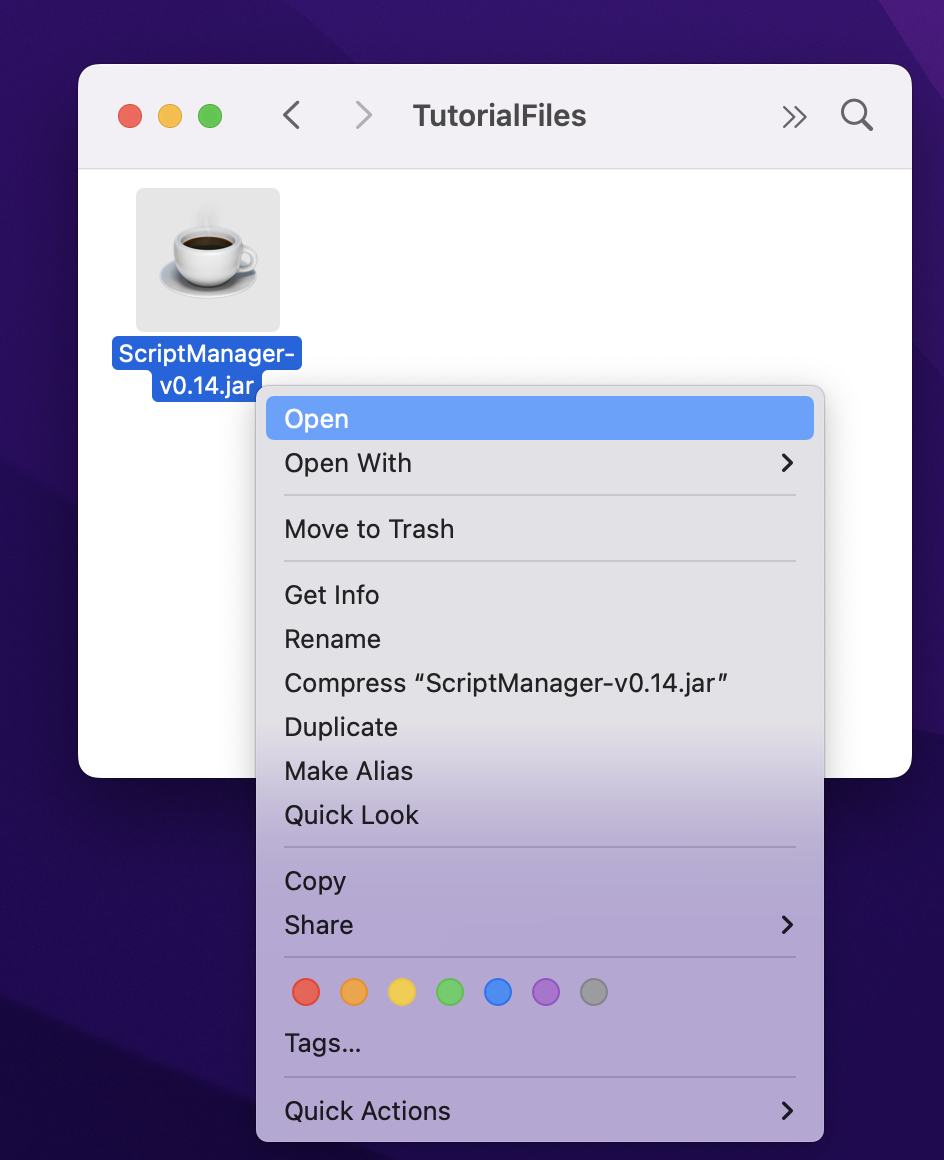
Some MacOS systems may not properly open the JAR by simply double-clicking on the JAR file so you may need to open your Terminal window and execute it from the command line by executing the jar file without any arguments or flags:
java -jar /path/to/ScriptManager.jar
If you're not sure how to type the path to ScriptManager, you can type java -jar (end with space) and then drag ScriptManager from Finder into your Terminal window and then press enter.
Double-click or right-click the ScriptManager JAR file to start the program.

Double-click or right-click the ScriptManager JAR file to start the program.

Once you see the main tool selection window, you're off to the races!
2. Generate BAI index file
A BAI index file is required for each BAM file of interest (i.e., the tag occupancy data you want to plot). This file allows for rapid access of the sorted and aligned sequence reads (BAM file).
SAM/BAM standard is to keep BAI file in same directory as BAM file with the ScriptManager-generated filename.
ENCFF720ZUJ.bam
ENCFF720ZUJ.bam.bai  # Need to generate this file to proceed.
2.1. Navigate to BAM Manipulation ➡️ BAM-BAI Indexer

2.2. Generate BAI index files for each BAM file of interest by loading your BAM file and clicking "Index."
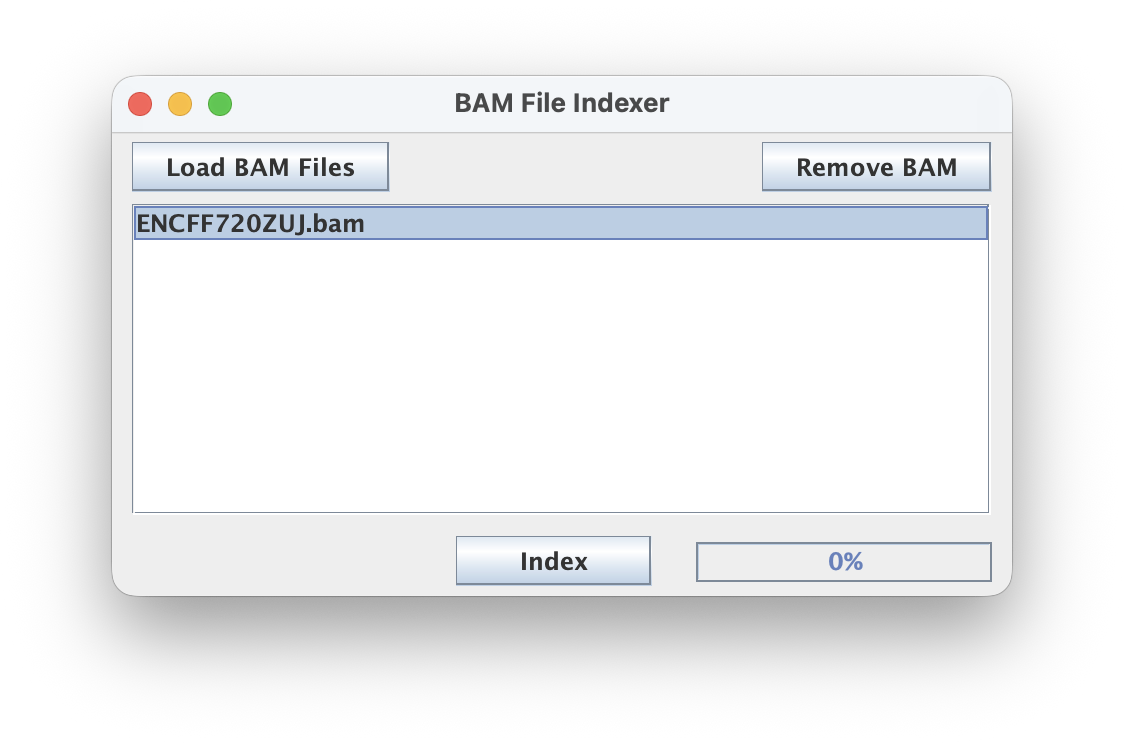
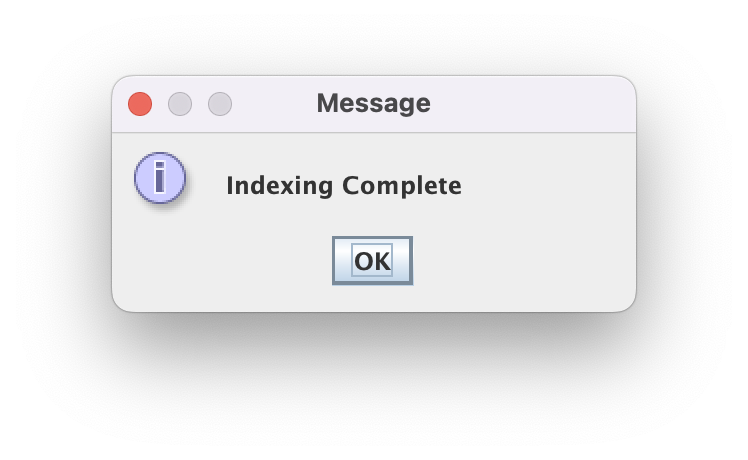
The speed of this step scales with the size of the BAM file. Generally this step 30 sec for a 100 MB BAM file but may take 1-2 min for a multi-GB BAM file.
3. Resize the TSS BED file
The BED file is the set of reference coordinates that your heatmap and composite plots will be aligned to, but you’ll need to specify how far upstream and downstream you want your data to be plotted; i.e., “Size of Expansion (bp)”.
3.1. Navigate to Coordinate File Manipulation ➡️ Expand BED File

3.2. For this tutorial, use the 4000bp expansion and select "Expand from Center".
This gives a window of 2000bp upstream and 2000bp downstream of each TSS, so we can see signal entering the gene body.
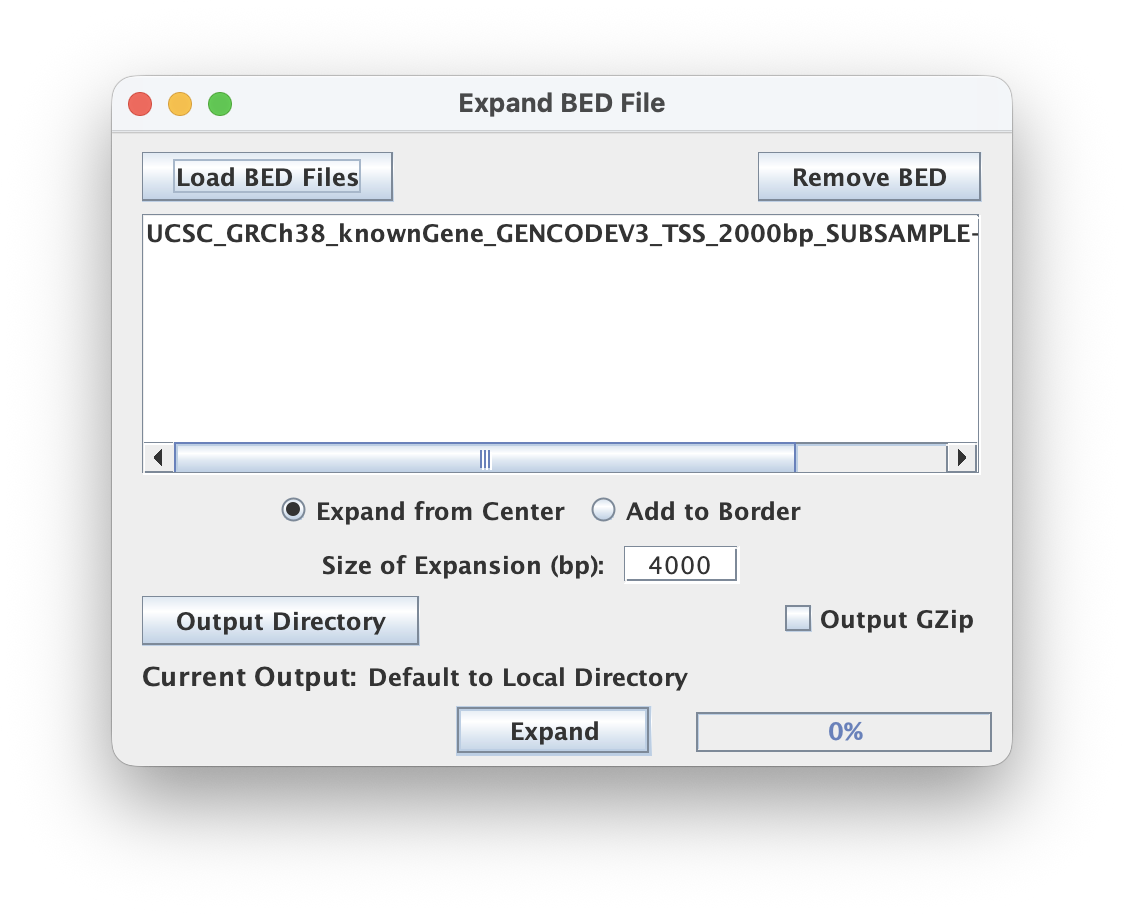

TSS-centered windows are a good start for looking at transcription initiation and promoter-proximal signal. To look at whole gene bodies (TSS to TES), so you would need to sort genes by their length and then expand asymmetrically downstream to examine patterns in the heatmap (outside the scope of this tutorial).
4. Generate the tag pileup
Use TagPileup to pileup the BAM data within a set of BED coordinate windows to generate the composite plot and the matrix (CDT) files that will be used to sort and generate the heatmaps.
4.1. Navigate to Sequence Read Analysis ➡️ Tag Pileup

4.2. Load the expanded BED (*_4000bp.bed) and BAM files
4.3. Keep the default "5' End" and "Read 1" read options. Keep the strands separated ("Separate")
4.4. Select output directory & make sure "Output Matrix", "CDT", and "Output GZIP" are selected
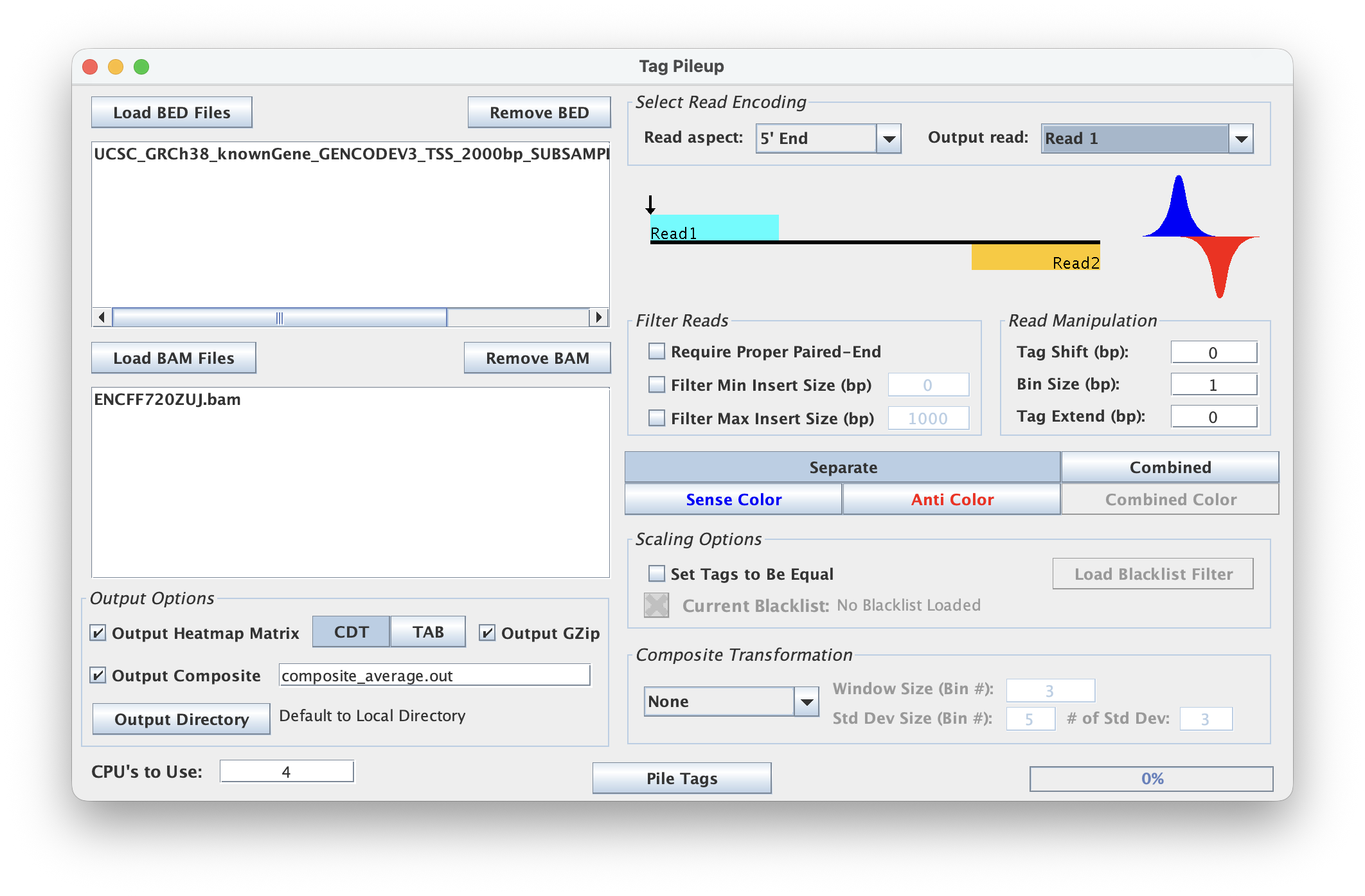
4.5. When ready, select ‘Pile Tags’ to execute
You may select more CPUs if your resources allow for faster pileups.
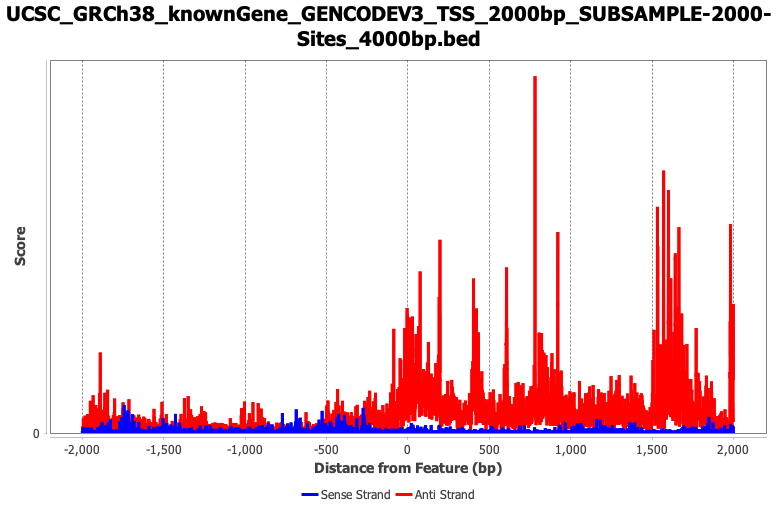
4.6. Inspect the composite to check your library strandedness
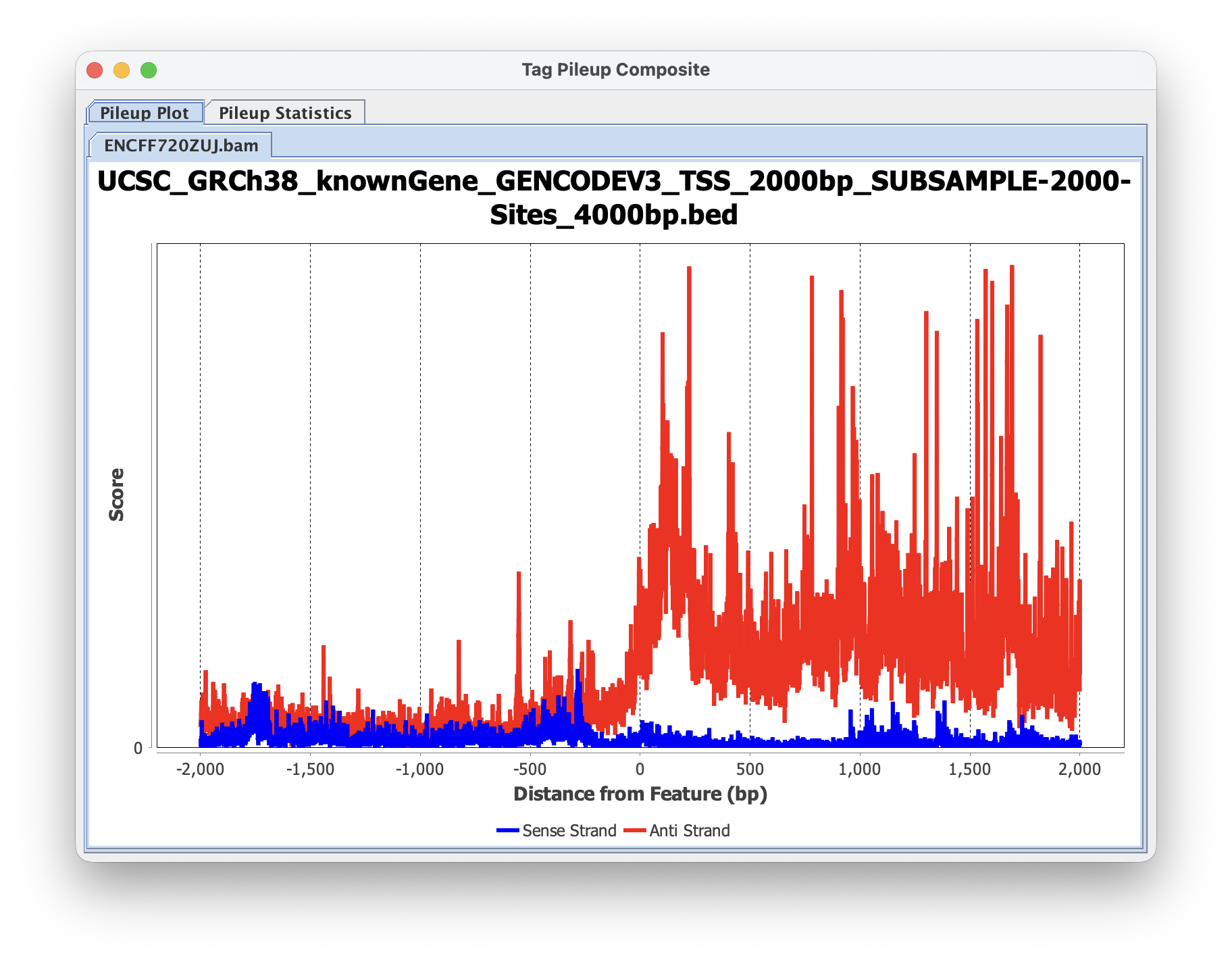
Most stranded RNA-seq libraries (e.g., Illumina TruSeq Stranded, dUTP-based protocols, including ENCODE's) are "reverse stranded": Read 1 is the reverse complement of the RNA. That means for a gene on the + strand, Read 1 aligns to the - strand.
For this dataset you should see:
- Anti (red): a strong signal that rises downstream of the TSS (x > 0) and continues into the gene body. This is the mRNA from your annotated genes.
- Sense (blue): much weaker signal, mostly upstream of the TSS (x < 0). This is antisense/divergent transcription coming off the other side of bidirectional promoters.
If the strong gene-body signal shows up in Sense instead of Anti, your library is "forward stranded" (Read 1 matches the RNA). If both strands look the same, your library is unstranded. Check your library prep and interpret the strands accordingly. Switching the read option to "Read 2" will flip which strand the transcript signal appears on and capture the other end of the sequenced RNA fragments.
Besides the composite plot image, ScriptManager has saved the matrix *.cdt.gz files to your Output Directory together with the composite plot values file (If you didn't change the name it would be called composite_average.out).
5. Sort the BED file by expression
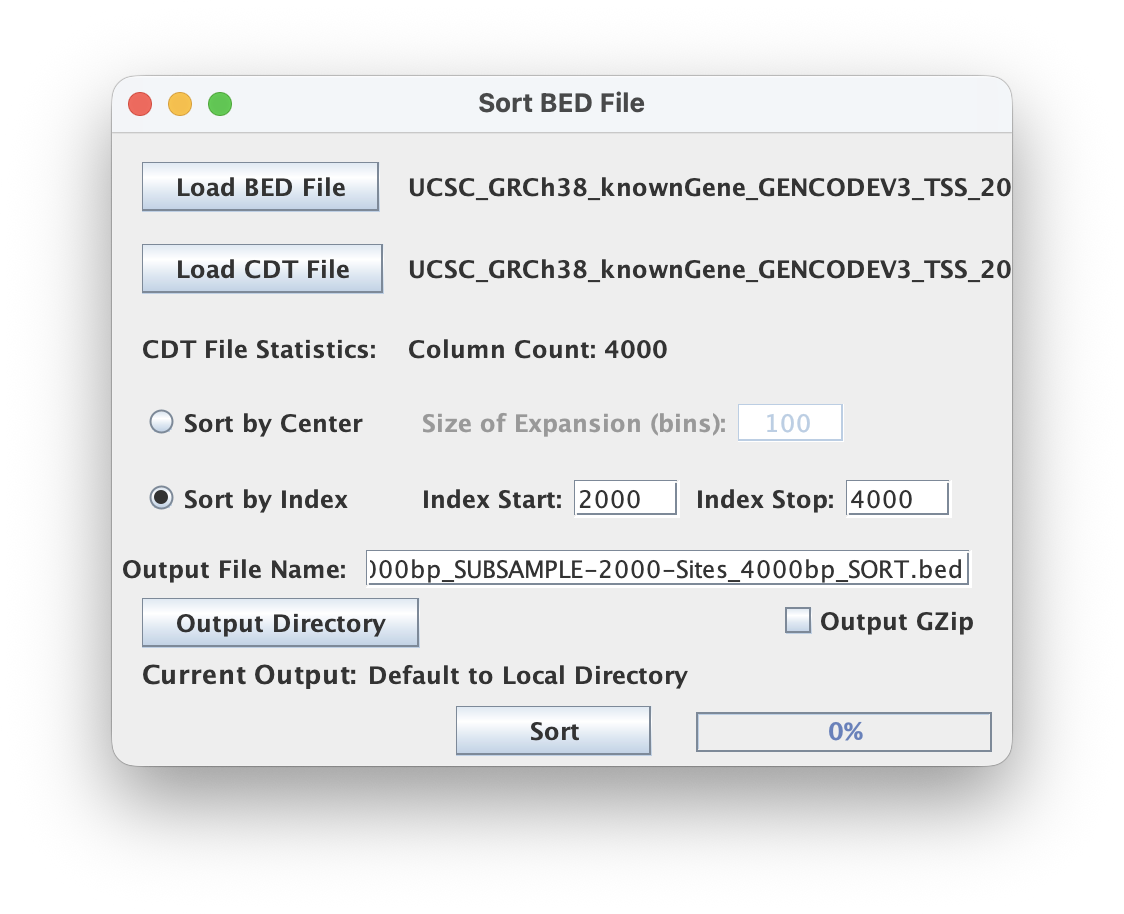
Heatmaps of unsorted genes are hard to read. Here we'll use Sort BED to order the genes by the amount of RNA-seq signal just downstream of the TSS, so the most highly expressed genes are at the top.
5.1. Navigate to Coordinate File Manipulation ➡️ Sort BED.

5.2. Load the expanded BED file (*_4000bp.bed) and the Anti CDT file from Tag Pileup (*_anti.cdt.gz)
The Anti CDT holds the transcript signal for this reverse-stranded library (see step 5.7).
5.3. Select "Sort by Index" and use an Index Start of 2000 and an Index Stop of 4000
With a fixed interval length of 4000bp, column 2000 is the TSS and column 4000 is +2000bp, so this sorts each gene by its signal across the first 2kb of the transcript.
5.4. Select a Base Output File Name for the sorted BED & CDT files and click "Sort"
6. Re-pileup on the sorted BED file
Sort BED only re-orders the one CDT file you gave it. To get Sense and Anti matrices that are in the same (sorted) row order, re-run Tag Pileup using the sorted BED file.
6.1. Return to Tag Pileup, remove the old BED file, and load the sorted BED file from step 5
6.2. Keep all the same settings as step 5 and click ‘Pile Tags’
Rows in the new *_sense.cdt.gz and *_anti.cdt.gz files now match the order of *_SORT.bed, with the most highly expressed genes first.
7. Generate Heatmaps
7.1. Navigate to Figure Generation ➡️ Heat Map.

7.2. Heatmap Generator can only generate one color at a time, so ‘Sense’ and ‘Anti’ files should be processed separately. Following the ChIP-exo standard, ‘Sense’ == blue and ‘Anti’ == red.
Start by generating the 'Sense' heatmap first.
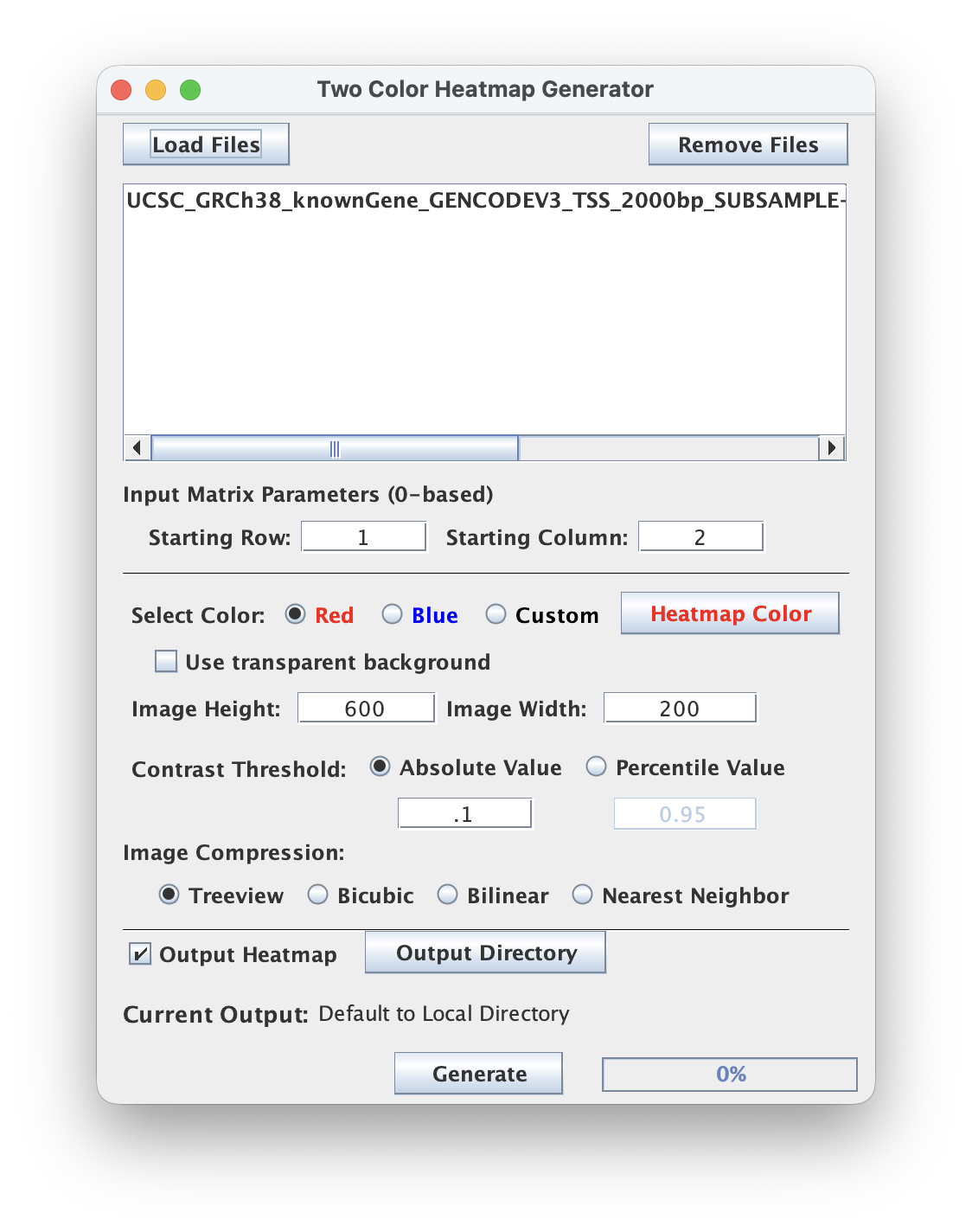
7.3. Click "Load Files" and select the _anti.cdt.gz output CDT file from the re-pileup in step 7.
7.4. Select "red" for the color
7.5. Use an "Absolute Threshold" value of 0.1
For comparability of intensities, the contrast thresholds should match betweeen sense and anti. You might switch to "Percentile Threshold" to get an understanding of where 0.95 (95th percentile) threshold lies for the anti signal (gene-body dominant signal) to inform the exact value to use for setting the "Absolute Threshold."
7.6. Click the "Output Heatmap" checkbox. The Heatmap generator does not save the produced PNG by default.
7.7. Click "Generate" to save your Sense PNG heatmap!
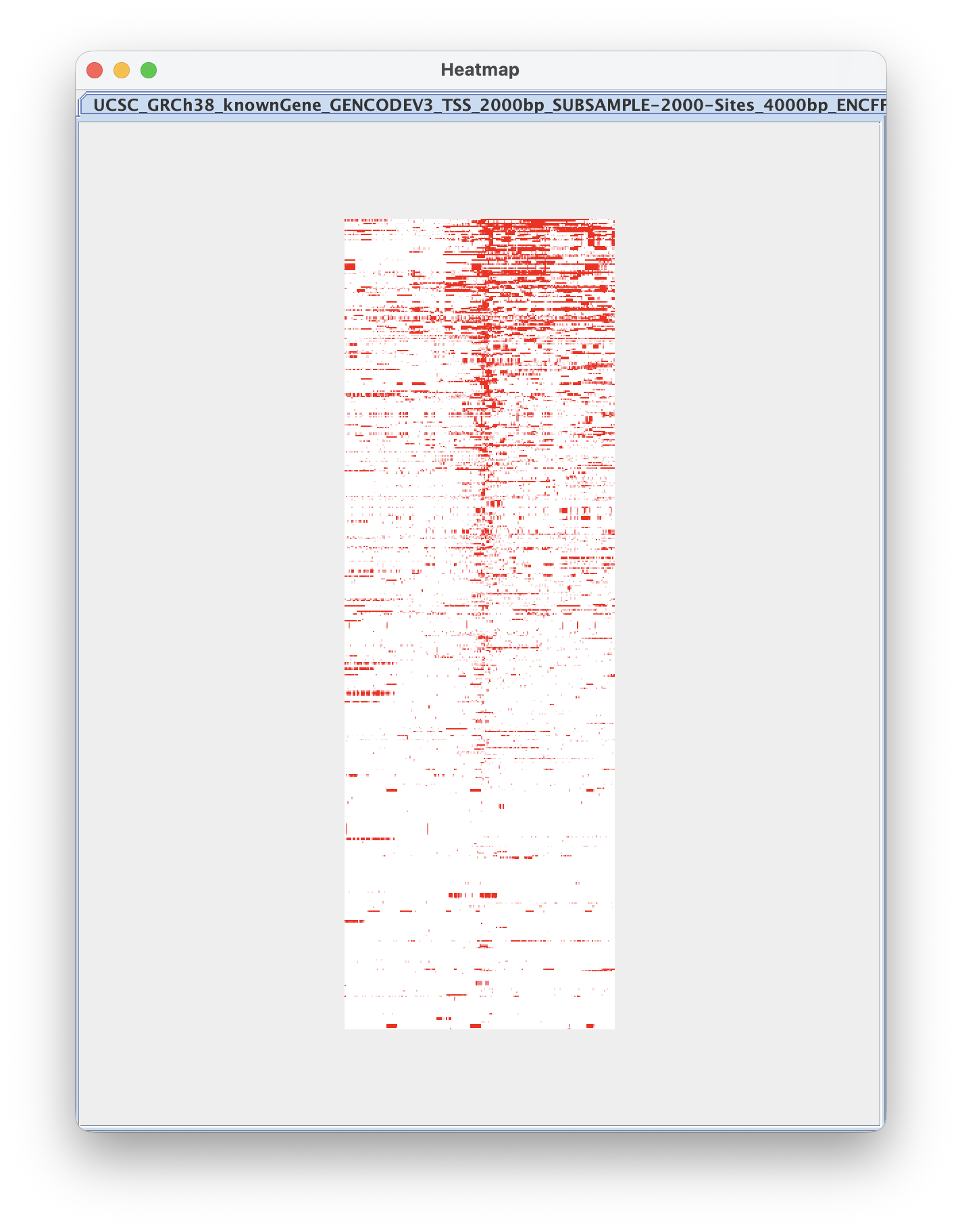
Similarly generate the 'Anti' heatmap.
7.8. Remove the "Sense" file by selecting it and clicking "Remove Files", then click "Load Files" and select the _sense.cdt.gz file
7.9. Select "blue" for the color and click "Generate" to save your Anti PNG heatmap!
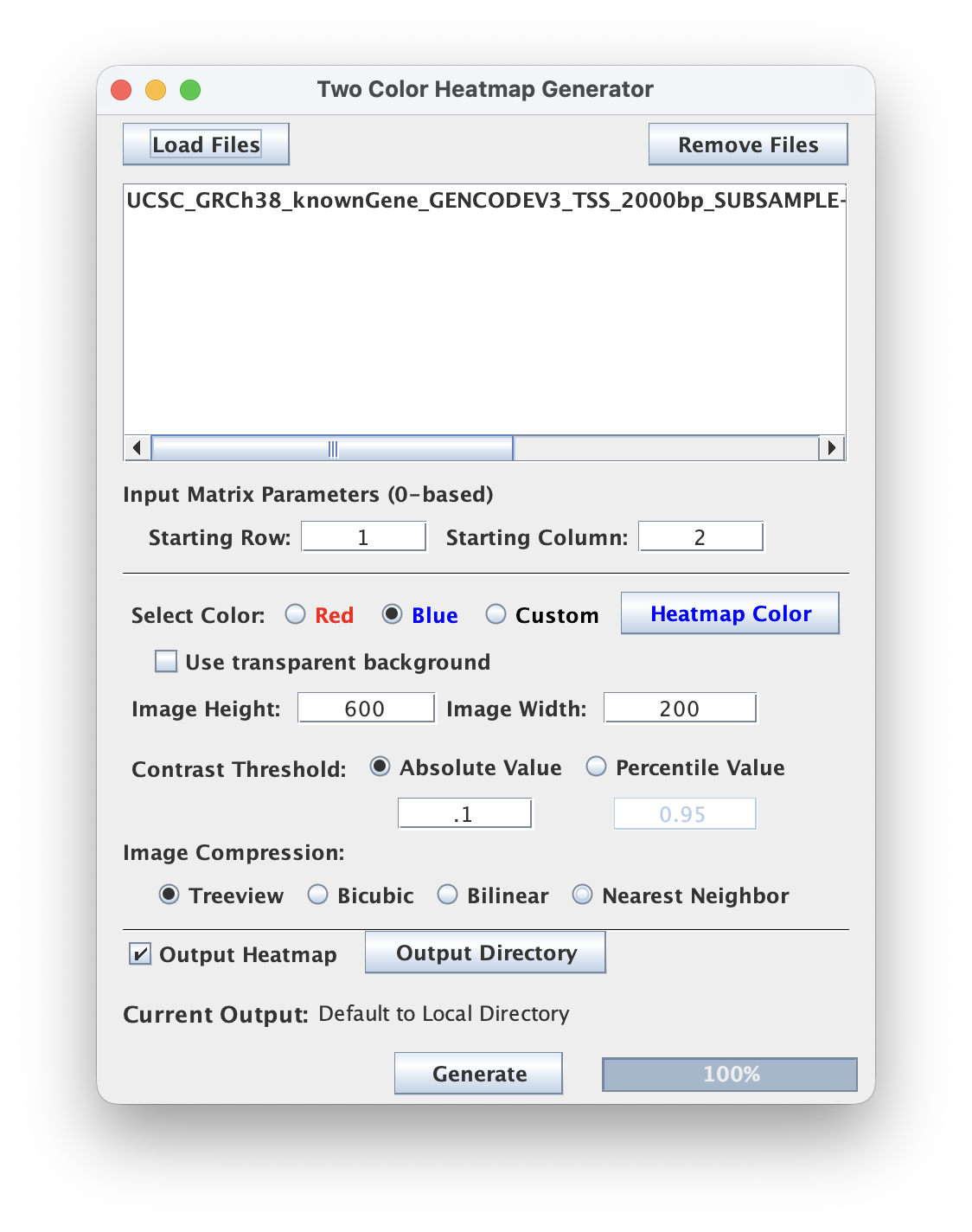
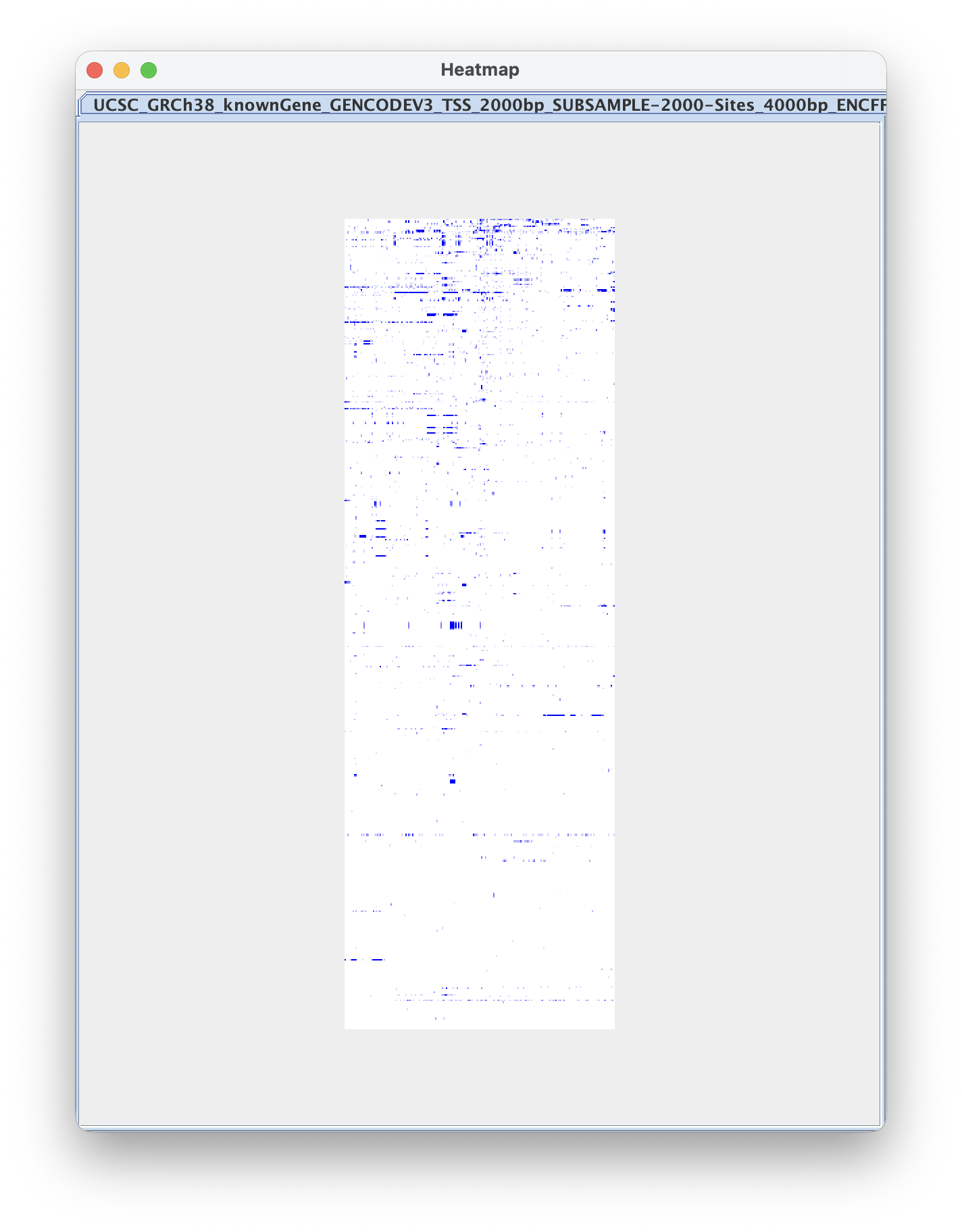
"Percentile Threshold" sets the contrast separately for each heatmap, which is good for looking at the shape of the signal. Because the Sense strand is much weaker than the Anti strand for RNA-seq, this means the Sense heatmap will look "brighter" than its true level. If you want to compare intensities directly between strands or between samples, use the same "Absolute Threshold" value for every heatmap instead.
8. Merge strand-separated heatmaps
8.1. Navigate to Figure Generation ➡️ Merge Heatmaps so we can merge our strand-separated heatmaps into a single PNG.
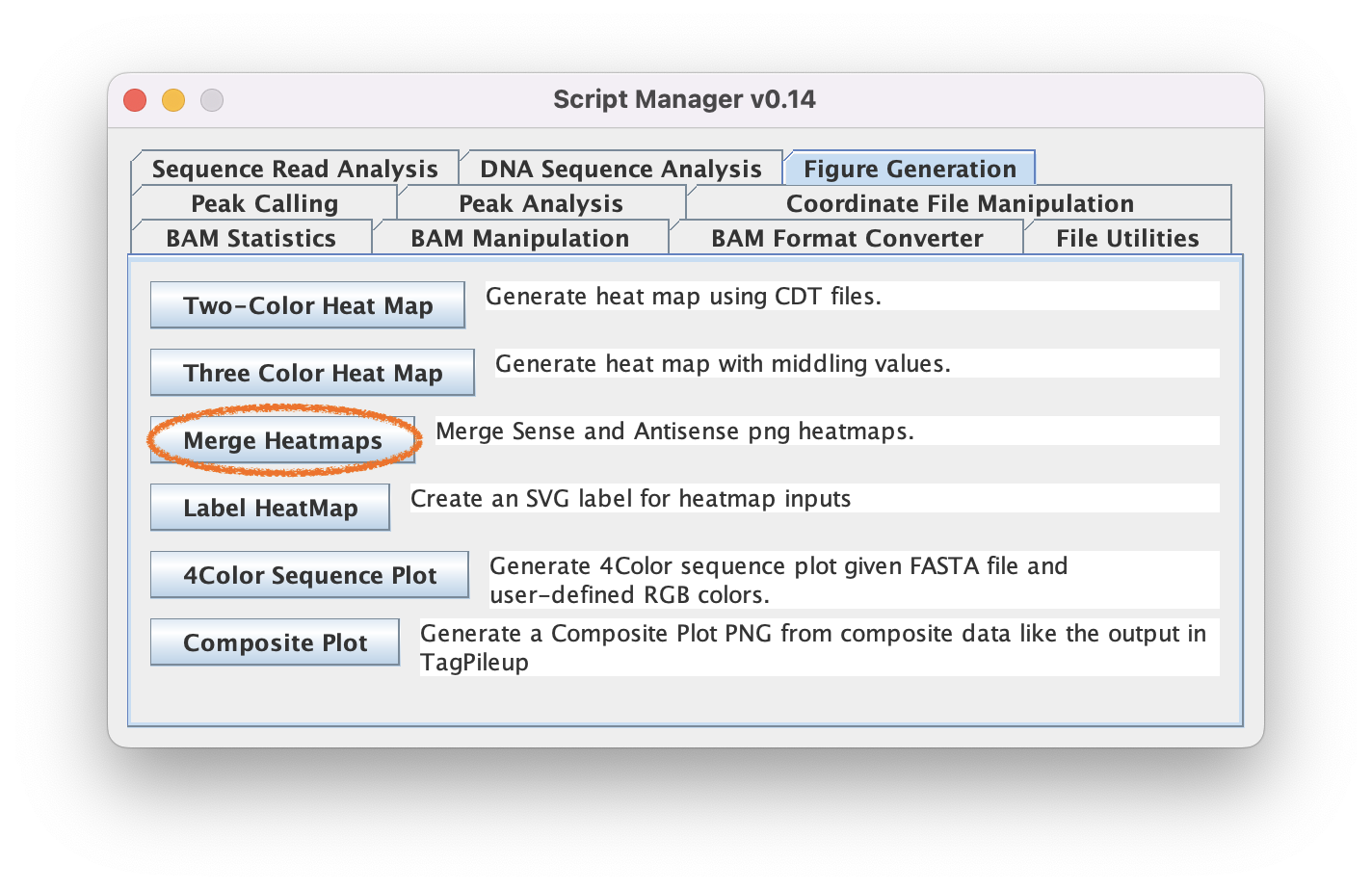
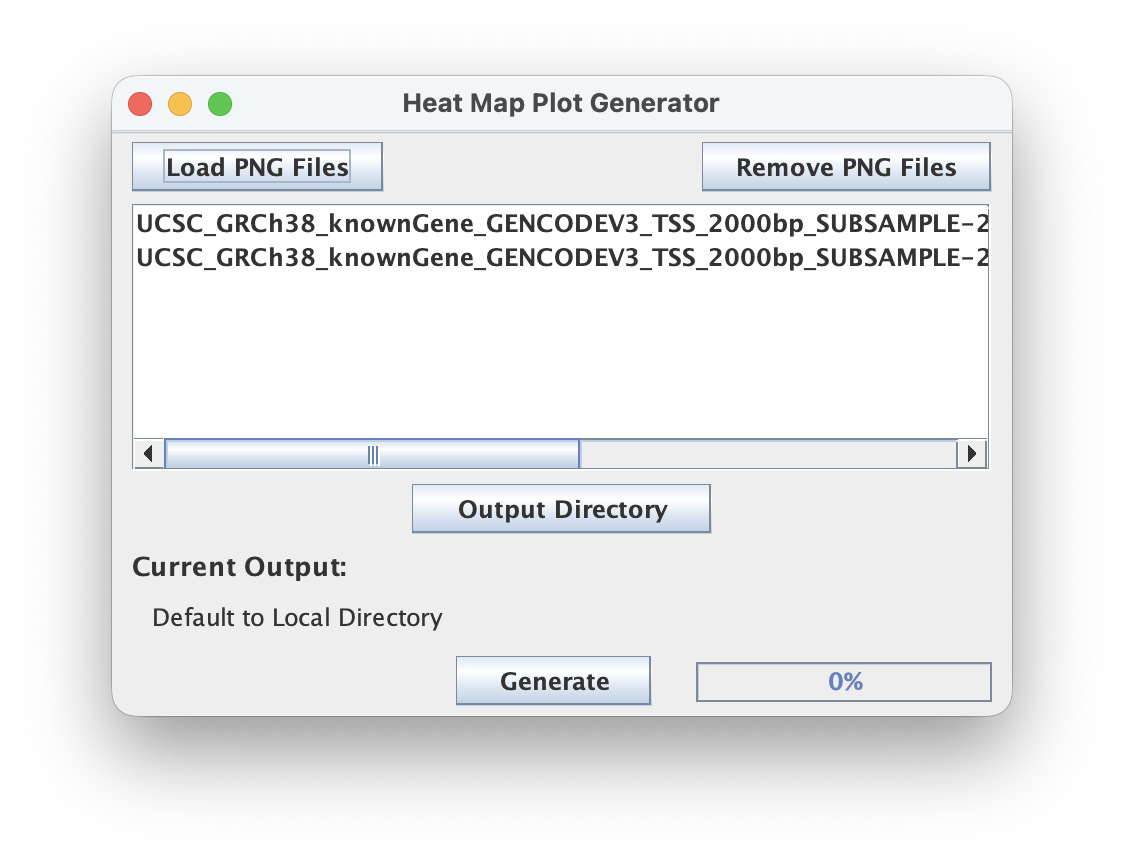
The script will automatically match sense to anti heatmaps using the standardized naming conventions used by ScriptManager
8.2. Click "Load PNG Files" to select the two files output by the HeatMap tool (sense and anti) in the last step
8.3. Click "Generate" to merge the PNG files into the same heatmap
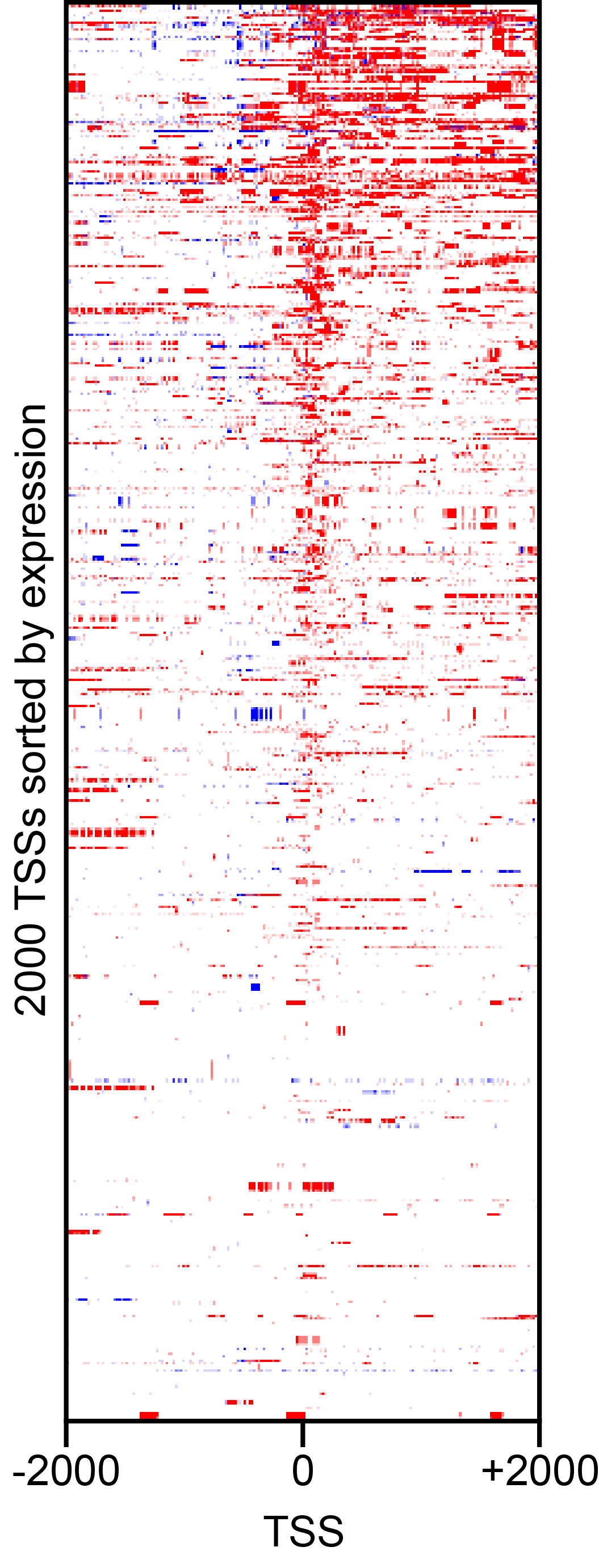
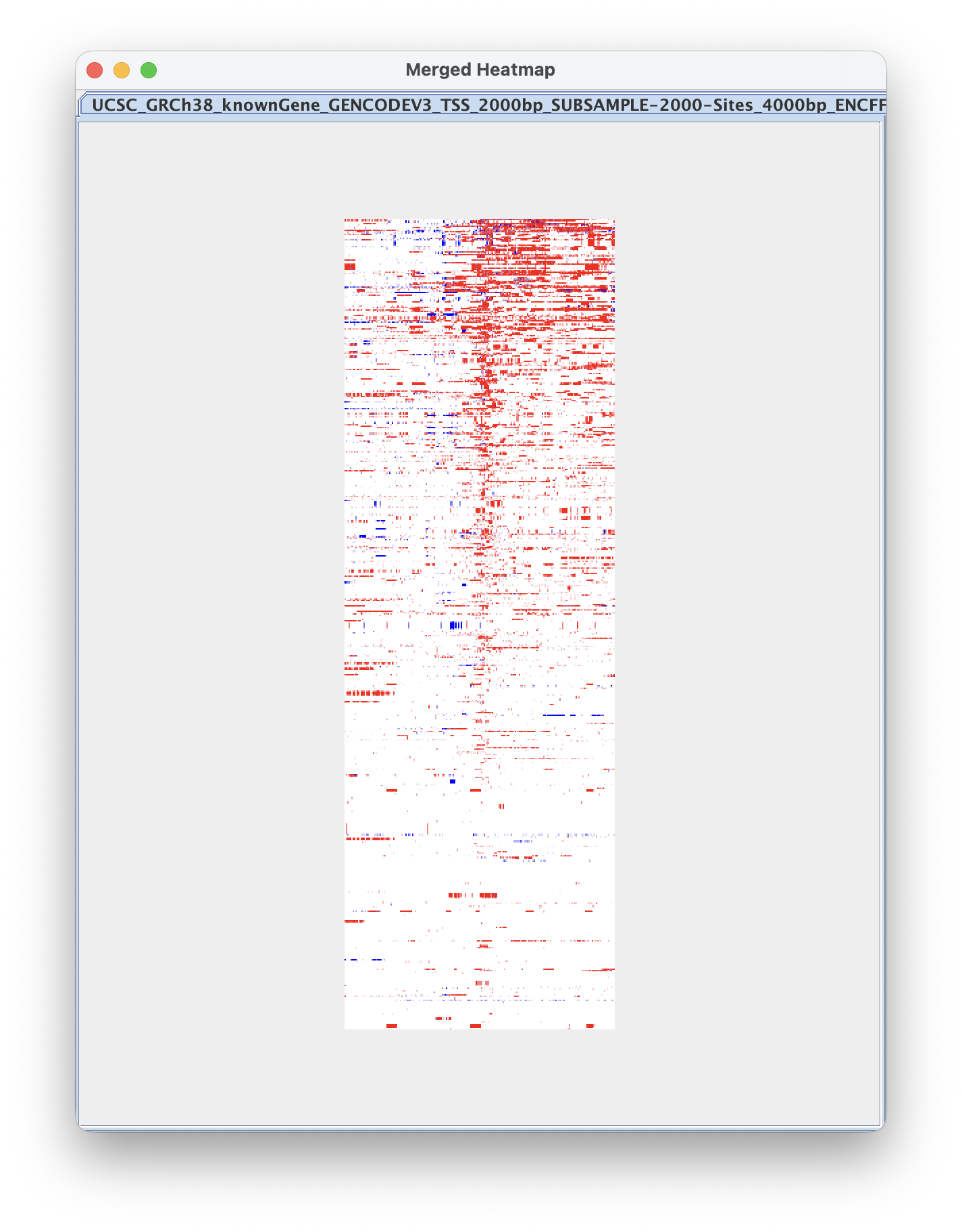
You should see the red transcript signal extending to the right of the TSS and the weaker blue divergent signal to the left, with both fading toward the bottom (lowly expressed genes).
9. Label your merged heatmaps
9.1. Navigate to Figure Generation ➡️ Label Heatmaps so we can add axes to the heatmap
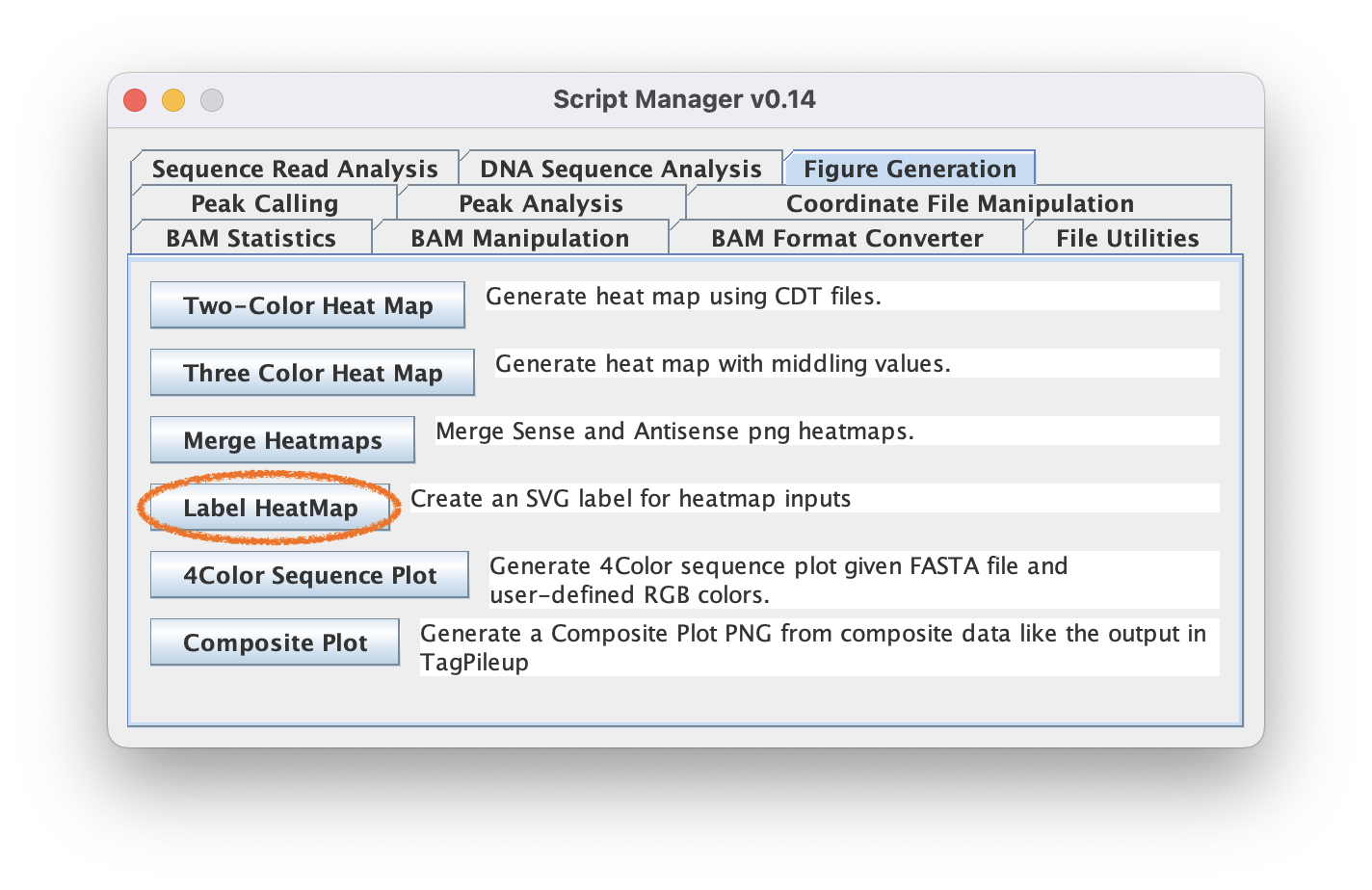
9.2. Click "Load Files" and select the .png output file from the merge heatmap tool
9.3. Use "-2000" for the left label, "0" for the middle label, and "+2000" for the right label. Optionally add an x-axis title (e.g., "TSS") and a y-axis title (e.g., "2000 TSSs sorted by expression").
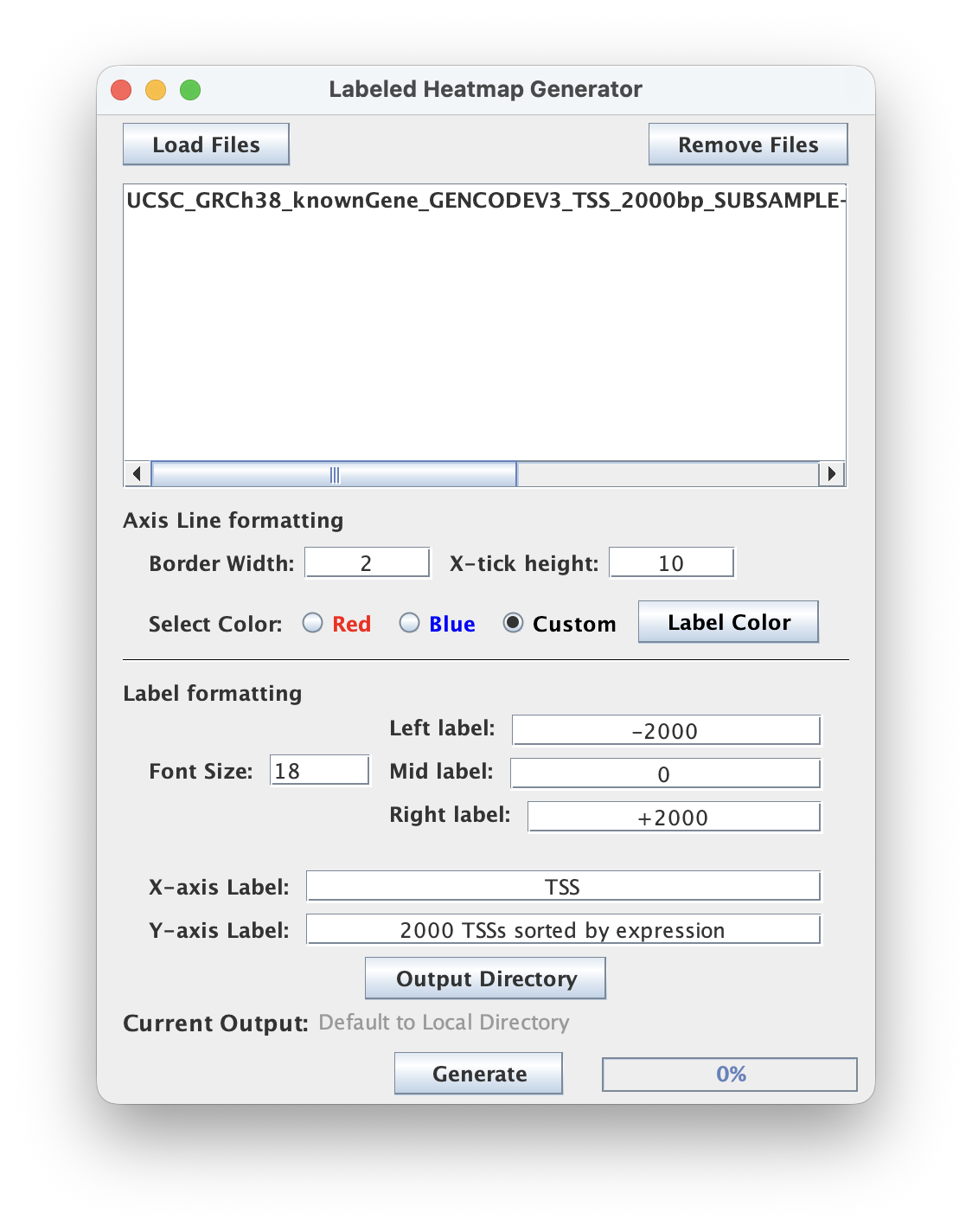
9.4. Click "Generate" to create an SVG file that labels your PNG
Open up your SVG file to see what it looks like! Use PowerPoint, Adobe Illustrator, or wherever you edit your publication figures to make any further edits!
General Comments
- Comparing samples: RNA-seq libraries differ in sequencing depth. Before comparing heatmaps or composites across samples (e.g., treated vs control), normalize them with Scaling Factor and Scale Matrix, and use a shared "Absolute Threshold" for the heatmaps.
- Other nascent/strand-specific assays: The same workflow works for other strand-specific transcription assays (e.g., PRO-seq, NET-seq), but check each protocol's read orientation and which read end marks the RNA 3' end before choosing "Read 1"/"Read 2" and "5' End"/"3' End".
- Bioinformatic projects should be organized in a uniform and consistent manner so that you can easily find them in the future. Consider the organizational structure described in Noble, 2009.
Command-Line shell script
The following shell commands records the locations for a BED file, a BAM file, and the anticipated OUTPUT basename as environmental variables to derive the corresponding composite plot values and heatmaps. This can serve as a template for you to write out your own workflows as bash scripts that execute command-line style ScriptManager.
SCRIPTMANAGER=/path/to/ScriptManager.jar
BEDFILE=/path/to/UCSC_GRCh38_knownGene_GENCODEV3_TSS_2000bp_SUBSAMPLE-2000-Sites.bed
BAMFILE=/path/to/ENCFF720ZUJ.bam
OUTPUT=/path/to/myoutput

samtools index $BAMFILE

# Window resizing
java -jar $SCRIPTMANAGER coordinate-manipulation expand-bed -c 4000 $BEDFILE -o ${OUTPUT}_4000bp.bed

# Initial pileup (Read 1, 5' end, strand-separated, 10bp bins), then sort by anti-strand signal from TSS to +2kb
java -jar $SCRIPTMANAGER read-analysis tag-pileup -1 -5 ${OUTPUT}_4000bp.bed $BAMFILE -o ${OUTPUT}_initial_composite.out -M ${OUTPUT}_initial
java -jar $SCRIPTMANAGER coordinate-manipulation sort-bed -x 2000 4000 ${OUTPUT}_4000bp.bed ${OUTPUT}_initial_anti.cdt -o ${OUTPUT}_SORT

# Re-pileup on sorted BED so sense and anti matrices share the same row order
java -jar $SCRIPTMANAGER read-analysis tag-pileup -1 -5 ${OUTPUT}_SORT.bed $BAMFILE -o ${OUTPUT}_composite.out -M ${OUTPUT}_matrix

# Heatmaps
java -jar $SCRIPTMANAGER figure-generation heatmap -a .1 --red ${OUTPUT}_matrix_anti.cdt -o ANTI.png
java -jar $SCRIPTMANAGER figure-generation heatmap -a .1 --blue ${OUTPUT}_matrix_sense.cdt -o SENSE.png
java -jar $SCRIPTMANAGER figure-generation merge-heatmap SENSE.png ANTI.png -o ${OUTPUT}_heatmap.png
java -jar $SCRIPTMANAGER figure-generation label-heatmap ${OUTPUT}_heatmap.png \
  -x "TSS" -y "2000 TSSs sorted by expression" -l -2000 -m TSS -r +2000 -o ${OUTPUT}_heatmap.svg

rm SENSE.png ANTI.png ${OUTPUT}_initial*

# Output files:
#  - /path/to/myoutput_InsertHistogram.out
#  - /path/to/myoutput_PE.png
#  - /path/to/myoutput_4000bp.bed
#  - /path/to/myoutput_SORT.bed
#  - /path/to/myoutput_SORT.cdt
#  - /path/to/myoutput_composite.out
#  - /path/to/myoutput_matrix_sense.cdt
#  - /path/to/myoutput_matrix_anti.cdt
#  - /path/to/myoutput_heatmap.png
#  - /path/to/myoutput_heatmap.svg